Showing posts with label mileage tracker. Show all posts

Monday, March 25, 2013

MileBug for iPad is now here!

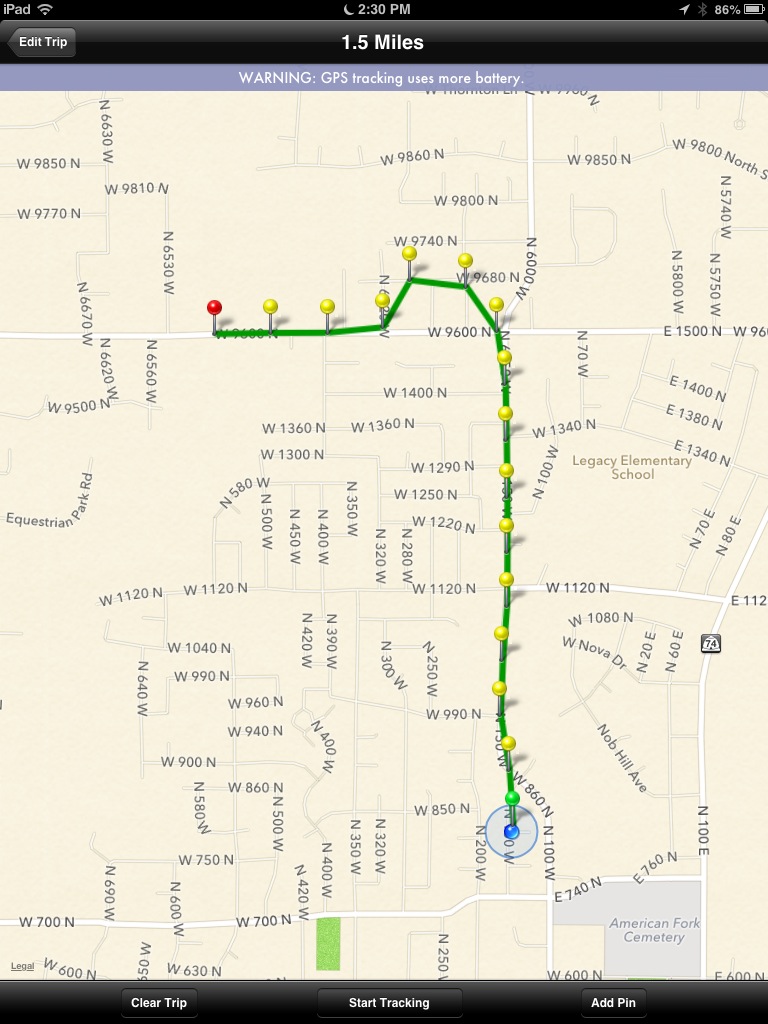
So many users have requested a version of MileBug for iPad. It only makes sense as many people now have iPads, but who may not have an iPhone or iPod Touch. While it's true that the iPhone version has worked for many people on the iPad via the 2x magnifier, having a UI that is optimized for the iPad will be a great improvement.

Last night MileBug was released as a Universal App, which means it can be installed on either an iPhone/iTouch or an iPad and it will detect which device it's running on...and present the right UI for the right screen! Buy once and use on both!

MileBug is a great mileage tracker for business deductible miles. Track miles by odometer readings and/or GPS. Trip miles are automatically converted to tax deductions and made available in reports fit for Word/Pages (html) and Excel/Numbers (CSV).

Check out some screenshots of MileBug on the iPad!

Buy MileBug for iPad in the Apple App Store!


Monday, March 19, 2012

Using Favorite/Frequent Trips


We often go to the same places with the same purpose, and so it makes sense to capture these for quick reuse later. That way we don't have to enter all the information over and over again each time we make one of the frequent or favorite trips.

Add to Favorite Trips
To do this in MileBug, simply scroll to the bottom of the Add Trip or Edit Trip screen and you'll see the "Add to Favorite Trips" button. The screenshots shown here are for iPhone, but the buttons are in the same places on both Android and Windows Phone.

Use a Favorite Trip
The next time you add a trip, you can now choose the "Favorite/Frequent Trips" button at the top of the Add Trip and Edit Trip screens. This will bring up a list of the favorite trips you've saved. Just tap the one you want, and the data all fills in. The end odometer reading of your last trip with this vehicle is used as the start odometer for this new trip, and the end odometer is simply the miles/km recorded in the favorite trip added to that new start odometer.

Enjoy using Favorite/Frequent Trips!

Thursday, March 15, 2012

MileBug for WP7 hits #4 in Business!

With just over 2 months in the Windows Marketplace, MileBug for Windows Phone (WP7) hits #4 in the Business category! And to top it off, it has a 4.5-star rating! Thank you everybody!

Please leave reviews so we know what you like and what we can improve. Spread the word!


Monday, March 12, 2012

Save the trip to have GPS continue tracking

A few users have written in concerned about the GPS stopping in the middle of tracking a trip. Turns out they hadn't saved the trip before driving away. We're working on devising a more intuitive UI, but wanted to help users understand the intended way to use MileBug to get the most out of it.

When you add a trip and turn on GPS, you actually need to return to the Add Trip screen and save the trip for the GPS to continue tracking. The incomplete/ongoing trip will appear in red in the Trips List while the GPS continues to track in the background. When you arrive at your destination, simply tap the red trip and stop the GPS tracking. The end odometer reading will be filled in automatically with the totals added to your mileage log.

Remember: Save the newly added trip to have the GPS continue tracking.

Thursday, October 1, 2009

FALL SALE - 50% OFF!!

To celebrate the changing of the leaves, we're changing the price...for a limited time! MileBug full version is now just $1.99. That's 50% off the normal price of $3.99.

So go get MileBug now: itunes.com/apps/milebug

Saturday, July 18, 2009

New MileBug VIDEO Review

Check it out, the AppPodCast posted their VIDEO review of MileBug:

http://theapppodcast.com/milebug-mileage-log-iphone-app-review

MileBug 1.4.1 is HERE!

A quick little update to fix a bug. With the upgrade to iPhone OS 3.0, users were reporting the inability to email the report from the Preview screen. All fixed!

Saturday, October 11, 2008

MileBug gets 5 Thumbs-Up!

Just got the word from iTouchGuy at www.ireviewiphoneapps.com that a new review of MileBug had been posted this morning: 5 Thumbs Up!! Obviously we're happy people are enjoying and loving MileBug. Check out the review and pass it along!

http://www.ireviewiphoneapps.com/index.php?s=milebug

Thursday, September 4, 2008

Reordering Presets: A hidden feature

A wonderful little feature in MileBug is the ability to reorder the presets. So if you change jobs, or start a new business, and want that one at the top...no problem!

It all happens inside the Presets Manager (left button on the tab bar at the bottom). Just place your finger on the 3 horizontal lines to the far right of the business (or other preset) you want to move and drag it to the place you want it. Voila!

This is true for all the presets: Businesses (including Charities and Personal Medical), Destinations, Purposes, and Vehicles.

And, in case you didn't know, you can also delete presets, too. Just press the red circle to the left of the item you want to delete and a Delete button will appear. Press Delete, and it's gone! (Be aware: no undo!)

Monday, September 1, 2008

MileBug Reports: HOW and WHAT


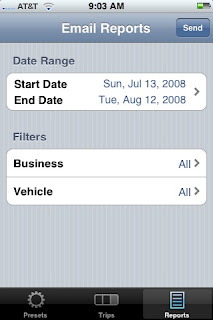
There have been a couple of inquiries regarding the reports feature of MileBug, so I thought I would describe the HOW as well as provide an example of WHAT it produces. First, to access the reports, simply click the Reports tab at the bottom of the application. You will be brought to this screen.

Once here, you can select the date range you wish for the report. The default is the last 30 days. Then choose a single business or ALL businesses, and likewise a single vehicle or ALL vehicles. Click the Send button at the top right and your email program will open up.

You may choose to email the report to whomever you wish and with whatever subject you wish. You may also add text to the body of the message, but it is highly recommended you add only to the top of the message unless you're very comfortable with HTML.

Once the report arrives in your email Inbox, you can read the enclosed instructions for a nice styled report (via HTML) or an Excel report which allows you to manage the data how you wish. Basically, just select and copy all the text beginning with Tax Deductible Mileage Report and paste it into Word for a styled report, or paste it into Excel for a spreadsheet. For the best experience in Word, simply select File-->Page Setup and choose Landscape. Excel just requires some adjusting to the column and row size.

Here's a sample report pasted into Word, and the same report pasted into Excel.

There are two sections: Summary and Detail. Both are grouped by business and grouped by vehicle within business, to make it the easiest for filing tax forms for each business/charity. The last column is Type: B-Business, C-Charity, M-Medical.

Wednesday, August 27, 2008

iPhone GPS: Why NOT use it for mileage tracking?

When we first designed MileBug, our intent was to use the new GPS feature of the iPhone 3G to track mileage. It would require less effort and provide more accuracy in case of IRS audit. Unfortunately the iPhone will not allow 3rd party apps, like MileBug, to run in the background. 

So while we thought it would be great for a user to simply turn on MileBug at the start of a trip and have the whole trip mapped, we realized that if the user chose to do anything else with their phone (take a call, use maps, pass to passenger to play a game, etc) then the pathway during that activity would be lost! Why? Because in order to answer/place a call, get directions, or play a game, the mileage app would be shutdown. We could always pick back up once the user restarted the app after the other activity, but where would that leave the user...with a gap in the trip! And what if they forgot to restart? It's fairly easy to go back and fill in odometer readings, but a little more challenging to go back and fill in GPS coordinates.

We also considered having a simple GPS start point and end point and let Google Maps calculate the route. That may still be an option, but it serves the IRS more than the user. That is, Google Maps will calculate the shortest route, and thus the smallest deduction. What if you got lost and spent another 5 miles wandering? Or if you were given different directions, other than the shortest route? The start/stop GPS points would cheat you out of the deduction you truly deserved.

Please let us know how you feel about using GPS. Did we place too much importance on the concerns we came up with? Would it still be useful in some way? Just click the "comments" link below and let us know.  Thanks!

Saturday, August 23, 2008

Welcome to the MileBug Blog!

We're really excited to be sharing MileBug with you now via the App Store! What a great way to expand the iPhone and the iPod Touch with so many quality apps (and some not so quality). And now we are a part of it!

Thank you all for your wonderful comments and we're providing this blog as a way for you to provide even more feedback so as we continue to improve and build on MileBug, we can do so with your interests in mind. This is also where you will learn about the little extras and what we have coming in the future.

So stay tuned and let's get our tax deductions!