With just over 2 months in the Windows Marketplace, MileBug for Windows Phone (WP7) hits #4 in the Business category! And to top it off, it has a 4.5-star rating! Thank you everybody!
Please leave reviews so we know what you like and what we can improve. Spread the word!
Thursday, March 15, 2012
Monday, March 12, 2012
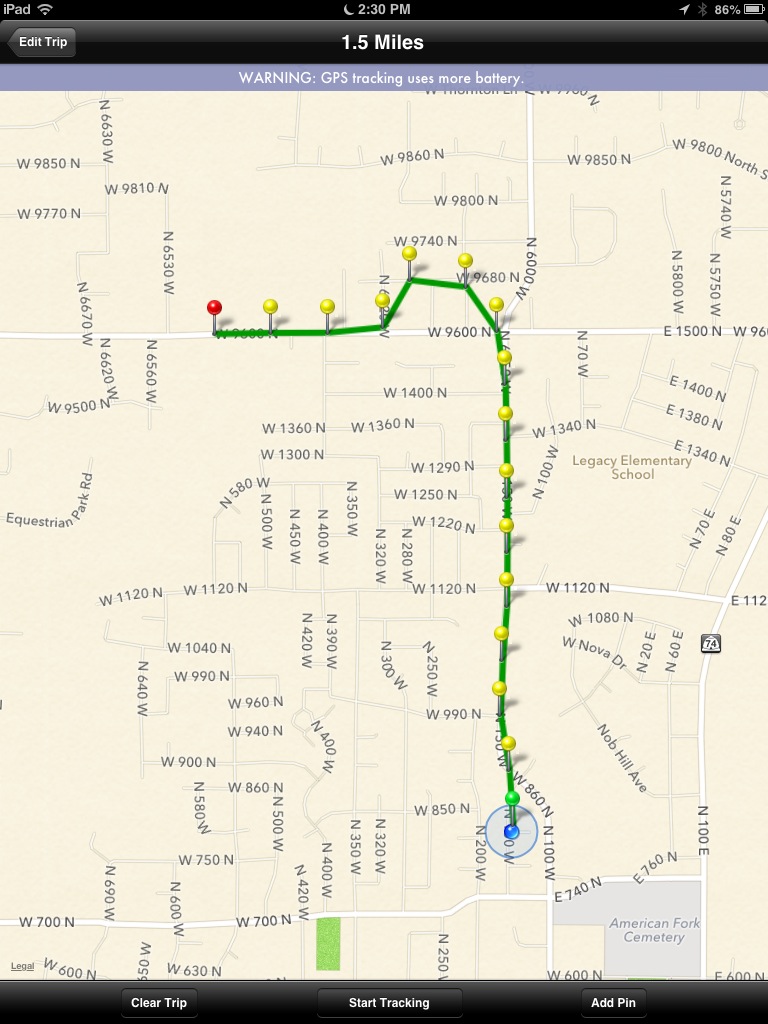
Save the trip to have GPS continue tracking
Remember: Save the newly added trip to have the GPS continue tracking.
Labels:
add trip,
beginners,
editing,
gps,
gps tracking,
iPhone,
iPhone 3G,
iPhone 4S,
mileage log,
mileage tracker
Wednesday, February 8, 2012
Using MileBug Internationally
A new MileBug user from the UK just wrote in wanting to know how to use MileBug in the UK as the app description promised. Believing she may not be the only one wanting to know, I thought this post could be helpful.
MileBug is setup to use the locale/country settings of the iPhone itself. Please follow these steps to set your iPhone for the UK (or whichever country you desire):
1) Open the Settings app on the home screen of your iPhone
2) Tap "General"
3) Scroll down to and tap "International"
4) Tap "Region Format"
5) Select United Kingdom (or your country) from the list
Now go back to MileBug and you're using pounds (or your currency)! You may need to scroll your trip list for it to refresh, or go to another tab, then back again.
To use km instead of miles:
1) Open the Presets Tab inside MileBug
2) Choose "Settings"
3) Choose "Kilometers"
Now you're recording Km!
MileBug is setup to use the locale/country settings of the iPhone itself. Please follow these steps to set your iPhone for the UK (or whichever country you desire):
1) Open the Settings app on the home screen of your iPhone
2) Tap "General"
3) Scroll down to and tap "International"
4) Tap "Region Format"
5) Select United Kingdom (or your country) from the list
Now go back to MileBug and you're using pounds (or your currency)! You may need to scroll your trip list for it to refresh, or go to another tab, then back again.
To use km instead of miles:
1) Open the Presets Tab inside MileBug
2) Choose "Settings"
3) Choose "Kilometers"
Now you're recording Km!
Monday, February 6, 2012
MileBug for Android breaks into Finance Top 20
If you take a look in the Android Market at the Top Paid apps in the Finance category, you'll see something that's been very familiar in the iOS Top 20 Finance - MileBug! Sitting pretty at #19. So now MileBug is ranked in the Top 20 in both the Apple App Store AND in the Android Market. How cool is that? Get Android MileBug in the Android Market.
To top it off we have a new version of MileBug for Android coming very soon that incorporates data backup to the SD card. Users have been asking, and we're listening. Look for it soon!
Tuesday, January 17, 2012
How to Remove MileBug Backups from your iPhone
An iPhone MileBug user wrote in asking if there was a way to remove old backup files from his iPhone. There certainly is, and such, I thought there may be others out there wondering the same questions.
WARNING: For either answer, DO NOT DELETE "appData.mbdata"
Short Answer: via iTunes File Sharing.
Step-by-step answer:
WARNING: For either answer, DO NOT DELETE "appData.mbdata"
Short Answer: via iTunes File Sharing.
Step-by-step answer:
1) Connect your iPhone to your computer, open iTunes, select your iPhone listed on the left
2) Choose "Apps" on the top and scroll down to "File Sharing"
3) Select MileBug and you'll see your backup files listed on the right
4) Select the files you wish to delete and hit "Delete" on your keyboard
5) DO NOT DELETE "appData.mbdata" as this is your current working database for MileBug
Don't be afraid to write-in with questions. We would love to help you, and more than likely there are others out there looking for the same answers.
Labels:
backup,
backups,
iPhone,
iTunes File Sharing,
milebug
Monday, January 9, 2012
MileBug now on Windows Phone 7!
It's finally arrived! MileBug for Windows Phone 7 is now in the Windows Marketplace and ready for download. And there's some fun features that are unique to WP7, too! Like live tiles! Create a favorite trip and put that trip on your home screen for an even quicker start.
WP7 also includes a 2-week free trial period. So go ahead and download it. It's free to try! Then two weeks after you log your first trip, just upgrade and you're good to go.
MileBug for Windows Phone 7 (Free trial, $2.99 upgrade)
WP7 also includes a 2-week free trial period. So go ahead and download it. It's free to try! Then two weeks after you log your first trip, just upgrade and you're good to go.
MileBug for Windows Phone 7 (Free trial, $2.99 upgrade)
Thursday, January 5, 2012
Users tell the world about MileBug
It's always great to see people getting great use out of MileBug! So I thought I would share some those that are posting their reviews:
1) Advanced IT Solutions -- http://www.bnits.net/news/31-iphone-app-milebug
2) Real Estate eBroker, Inc. -- http://reebroker.blogspot.com/2011/12/agent-advice.html
3) itbusiness.ca -- "Top Android apps we used in 2011"
4) HomeBuyingAndSellingExpert.com -- "Apps - Jet Fuel for Your Business"
5) AppComments.com -- "MileBug Reviews"
Do you have your own review of MileBug? Let us know (support@milebug.com) and we'll post it! Everyone can use a little more traffic, right?
Happy New Year!
1) Advanced IT Solutions -- http://www.bnits.net/news/31-iphone-app-milebug
2) Real Estate eBroker, Inc. -- http://reebroker.blogspot.com/2011/12/agent-advice.html
3) itbusiness.ca -- "Top Android apps we used in 2011"
4) HomeBuyingAndSellingExpert.com -- "Apps - Jet Fuel for Your Business"
5) AppComments.com -- "MileBug Reviews"
Do you have your own review of MileBug? Let us know (support@milebug.com) and we'll post it! Everyone can use a little more traffic, right?
Happy New Year!
Subscribe to:
Posts (Atom)